Petro Outlet has an amazing feature called Loss Prevention Analytics. It allows you to examine your store, transaction by transaction, to see if anything is going wrong such as employee theft. If your store is set up with a camera, you will have the ability to view a video of each transaction. Here is how to use it:
1. From the dashboard, click on Loss Prevention

2. To begin viewing activity, adjust the following scopes:
· Store
· Reporting period

Change Selected Stores
If you have multiple stores connected to your Petro Outlet platform, you can use this tool to generate a single report that combines data for all of them or for each store, individually.
Multi-Store Report
Select all stores from the list

Individual Report
Select the specific store you wish to generate a report for

Change Reporting Period
Next, you will set the time period you wish to view data from.
You can choose between cashier shifts or a custom time range.
Cashier Shifts
From the drop-down menu, select the desired shift.

Custom Time Range
With the Custom Time Range feature, you have the option to gather data by date & time (the hour)

Date:

Time:

3. Report Overview
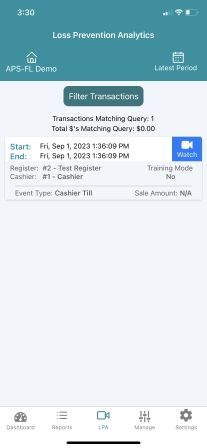
Once you have set the above parameters, the data will populate. This report provides a combination of transactional and video data.
The following information is displayed:
Start Date
End Date
Register
Cashier
Event Type
Sale Amount
Training Mode

4. Filter Transactions
To gain an in-dept understanding and explore the activity, you can filter data by Registers, Cashiers, Event Types, Sales Event Types, SKUs, Last four #’s of Card, Manual Ringup, Discounted Line, Void Line, or Flagged Line.

Adjust filters
Click on the drop down menus to apply filters:

The highlighted filters can be applied:


Additionally, you can view the associated video footage.

Receipt - An information stamp is located to the left of each footage.
Last Clip in Series / Next Clip in Series – Use these buttons to toggle between clips.
Flag – Click to mark as “Important/review required”

You can also use it on your phone:
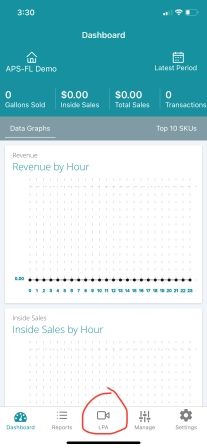
Click LPA on your Petro Outlet App
Then view your clips as you would on your computer
(imported from support.petrooutlet.com, written by Mahdi Hussein)