When you make a change on Petro Outlet, it automatically goes to your Super Sonic POS. But, if you have other POS machines, such as a Verifone or Gilbarco, you need to do a POS Transmission. This sends your changes to the rest of your POS machines. You must do this every time you make a change.
You can send POS Transmissons on your phone and on the computer.
How to send a POS Transmission on your Phone
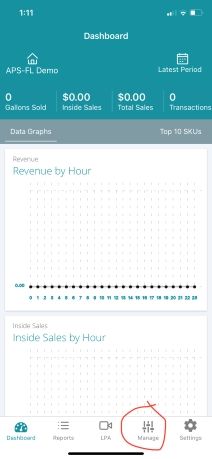
Go to the Petro Outlet app and click Manage.
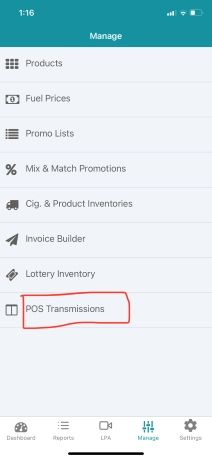
Click POS Transmissions.
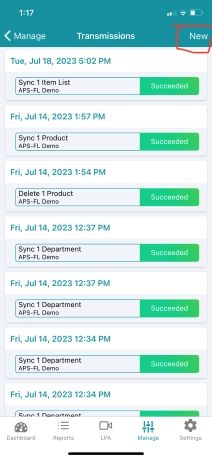
Then click New.
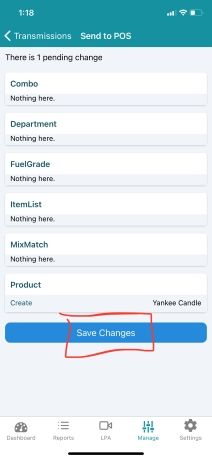
Then click Save Changes.
How to send a POS Transmission on your Computer:
Click on Store Management
From your dashboard, click on Store Management ( This is the 3rd option on the left-hand side menu)
Click on POS Transmission
Click on POS Transmission (This is the last item on the left-hand side menu)
Click on +New Transmission
Click on +New Transmission (This is located in the top right-hand side)
Save Changes to Send POS
Click on Save Changes, this will send your POS Transmission request.
POS Transmission Completed
Once the status changes to green check marks, the transmission was successful.
Yellow Highlighted Row
This means the product was changed
Red Highlighted Row
This means the product was deleted
Green Highlighted Row
This means a product was created